DXF and STEP exports for CAD & CNC routing
If you’re routing stringers on a CNC, modelling the stair in CAD, or generating cut paths in VCarve — Magic Stairs gives you geometry your tools can use directly. No conversion, no surface clean-up. The DXF bundle is your 2D path; STEP is your 3D path.
DXF — 2D vector geometry for CNC & CAM
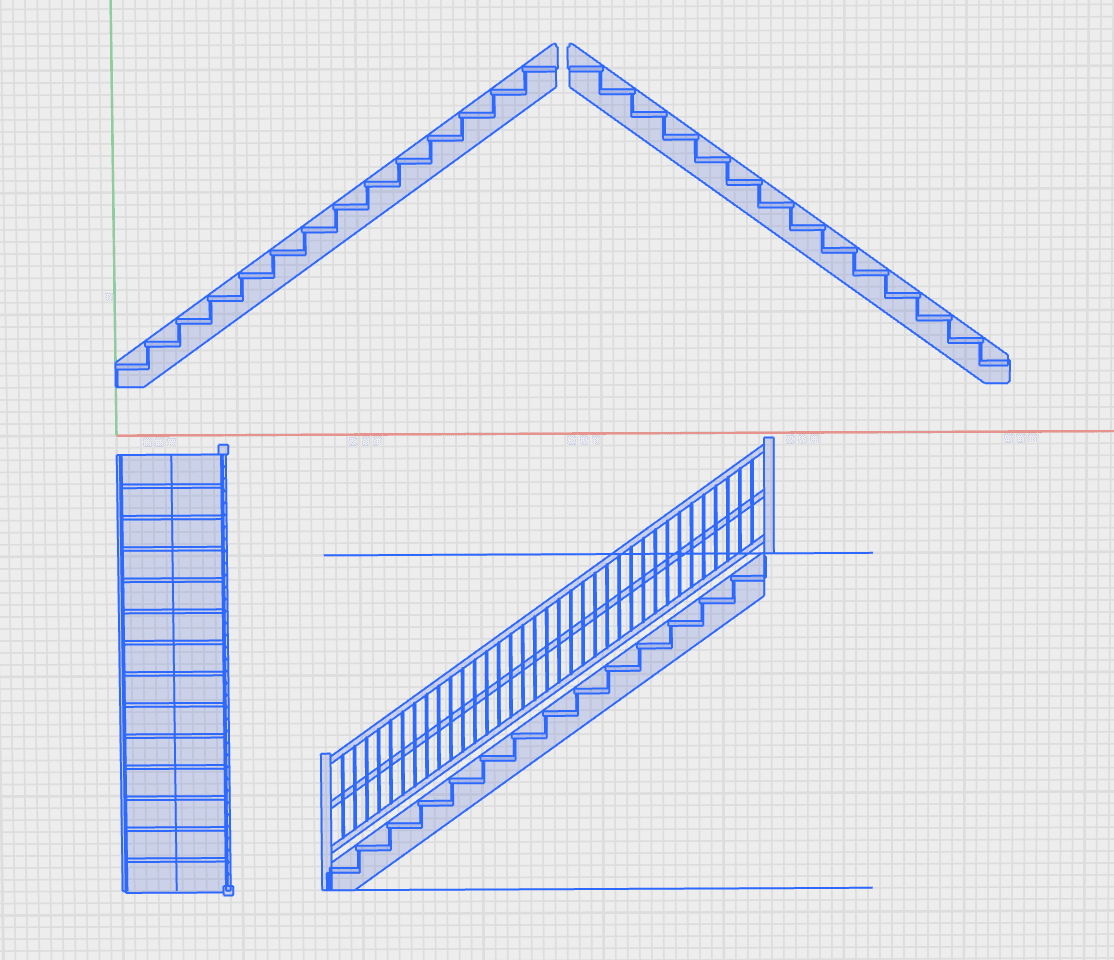
The DXF export is a ZIP archive containing one DXF file per sheet — mirroring the structure of the construction PDF. Plan view, elevation(s), and a separate workshop DXF for every cuttable part (stringers, treads, risers, newels, balusters, handrail). Each DXF is a flat 2D drawing using the standard ASCII DXF format (R2007 / AC1021), which every CAD and CAM tool on the market reads natively.
Layer structure
Every DXF is layered so you can isolate exactly what you need in your CAM tool. The layer names are stable across all calculator types (straight, L-shaped, ladder, porch):
TREADS— tread board outlines (one polyline per tread, including any corner notches)RISERS— riser board outlines (only present whenwithRisers = true)STRINGER— stringer profile (saw-tooth for open, rectangular slab with dado pockets for closed)BALUSTERS— baluster outlines in elevation viewHANDRAIL— upper handrail, lower rail, and any intermediate rails as separate polylinesNEWELS— newel post outlines + mortise pocketsDIM— all dimension lines, leaders, and text labels (turn this layer off for a clean fabrication file)FRAME— sheet border, title block, scale label (turn off to extract raw geometry)
CNC & CAM workflow
The typical workflow for routing stair parts on a CNC:
- Open the workshop DXF of the part you want to route (e.g.
stringer-inner.dxf) in your CAM tool — VCarve Pro, Fusion 360 Manufacturing, Vectric Aspire, Carbide Create, or your machine’s native CAM. - Hide the
DIMandFRAMElayers — you only need geometry, not annotation. - Select the stringer outline polyline. Assign a profile toolpath (outside cut) with your endmill diameter and material thickness.
- For closed stringers: select the dado-pocket polylines and assign a pocket toolpath at the dado depth specified in the calculator.
- Post-process to your machine’s G-code dialect and run.
Because every part is on its own layer, you can also load the whole sheet into nesting software (SheetCAM, MyNesting, Fusion 360 Nesting) and let it lay out the most efficient material yield across treads, risers, and stringer slabs.
Units & scale
DXF units follow the unit you selected in the calculator — millimetres or inches — and are tagged in the file’s $INSUNITS header variable. The drawings are at 1:1 scale; no unit conversion is needed in CAM. If your CAM tool defaults to a different unit, set the import unit once and it’ll line up.
STEP — 3D solid geometry for CAD
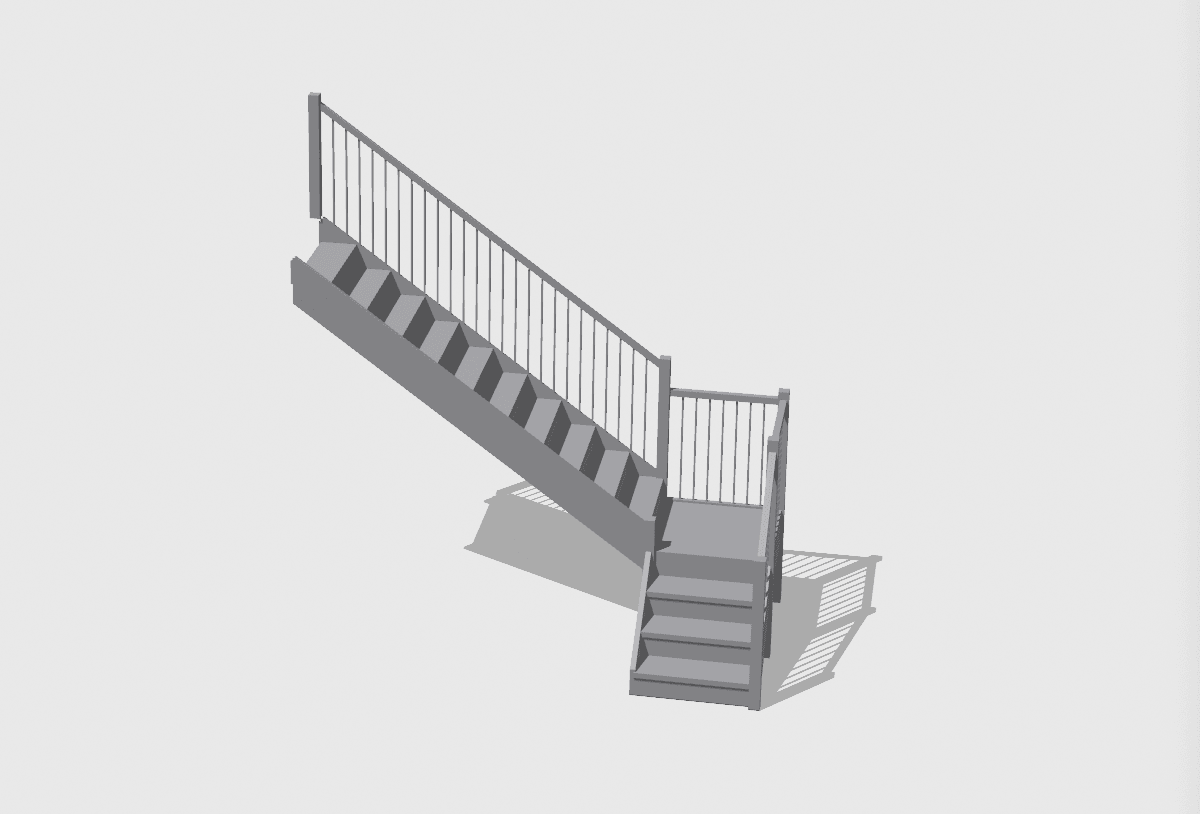
The STEP export (.step / .stp, AP214 BREP) is a single file containing the entire staircase as a 3D solid assembly. Unlike a triangulated mesh (STL), STEP carries true B-Rep solids — every face is a real surface with curvature and edges you can dimension, fillet, modify, and reference in your CAD sketch. It’s the format you want any time you need to integrate the staircase into a larger CAD model.
Component hierarchy & naming
STEP files contain an assembly hierarchy. Magic Stairs uses a flat, prefix-based naming scheme so every part is independently selectable in your CAD tool’s browser tree:
stringer-inner/stringer-outer/stringer-mid-N— one component per stringer slabtread-01,tread-02, … — one component per tread, indexed from bottom to topriser-01,riser-02, … — only present whenwithRisers = truenewel-foot,newel-head,newel-mid-N— one component per newel postbaluster-01,baluster-02, … — every individual baluster as its own componenthandrail-upper-N,handrail-lower-N,handrail-mid-N— every rail piece (upper, lower, intermediate) prefixedhandrail-so they group cleanly in the CAD tree
Components are positioned in world coordinates with the foot of the staircase at the origin and Y as the up-axis. No rotation or translation is needed on import — drop the STEP into your CAD and it sits where you’d expect.
Closed stringers carry their dado pockets pre-cut
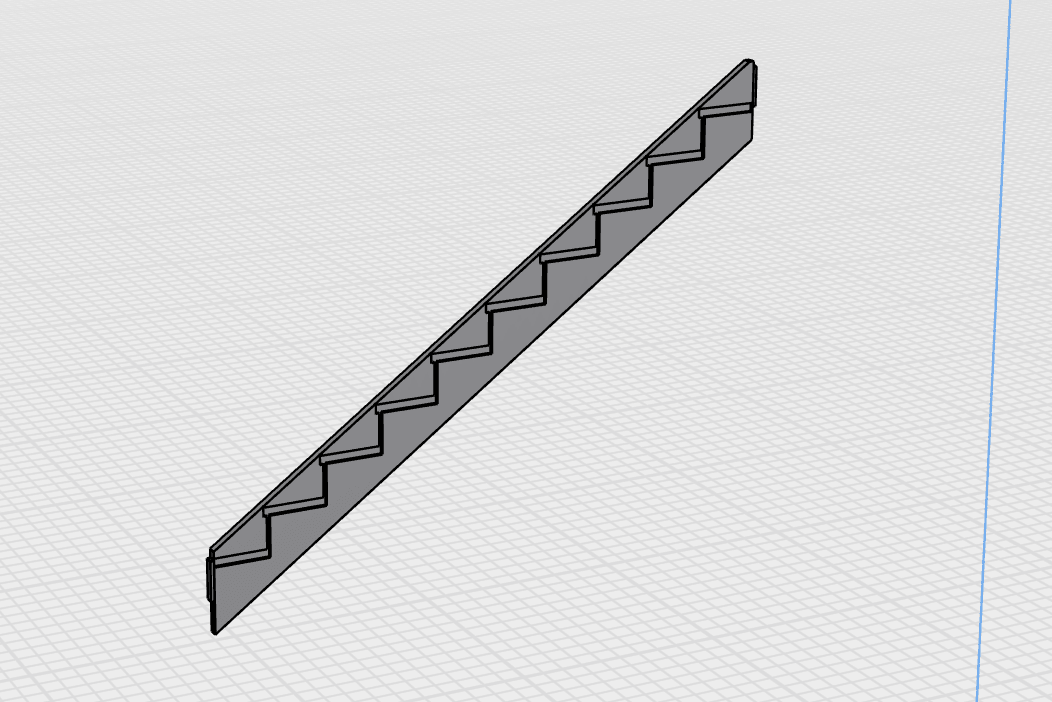
For closed-stringer designs (where the treads sit in pockets routed into the inside face of the stringer slab), each pocket is already cut into the stringer solid using a boolean subtraction — no manual modelling. Pockets are sized to the tread thickness plus a small clearance and are positioned so the treads insert directly into them when you drag them home in your CAD tool.
CAD modelling workflow
Typical workflow for working with the STEP in CAD:
- In your CAD tool (Fusion 360, FreeCAD, Onshape, Solidworks, Inventor, Solid Edge), use File → Import and choose the .step file from the Magic Stairs export.
- The staircase appears as an assembly in your browser tree — every part already named and positioned.
- To reference a specific part in a sketch (e.g. project the stringer outline onto a new sketch plane), expand the component and select it directly from the tree.
- To modify a part, right-click the component → Edit, or convert it to a parametric body and edit its features. For larger changes, prefer adjusting parameters in the Magic Stairs calculator and re-exporting — that keeps every part in sync.
- To add Magic-Stairs-generated geometry into a larger building model, insert the STEP as a sub-assembly of your project model and constrain its origin to your floor plan.
Compatibility notes
AP214 (Automotive Design) is the most broadly-supported STEP application protocol. Tested compatible:
- Autodesk Fusion 360 / Inventor / AutoCAD
- Dassault Solidworks / Catia / 3DEXPERIENCE
- PTC Creo / Onshape
- Siemens NX / Solid Edge
- FreeCAD (open-source) — full assembly tree preserved
- Any free STEP viewer (KiCAD 3D-Viewer, eDrawings, etc.)
Related exports
- PDF — every dimension, fully annotated, ready to print. See Construction PDF.
- SVG + STL — editable vectors for presentations + a 3D-printable mesh. See SVG & STL exports.